
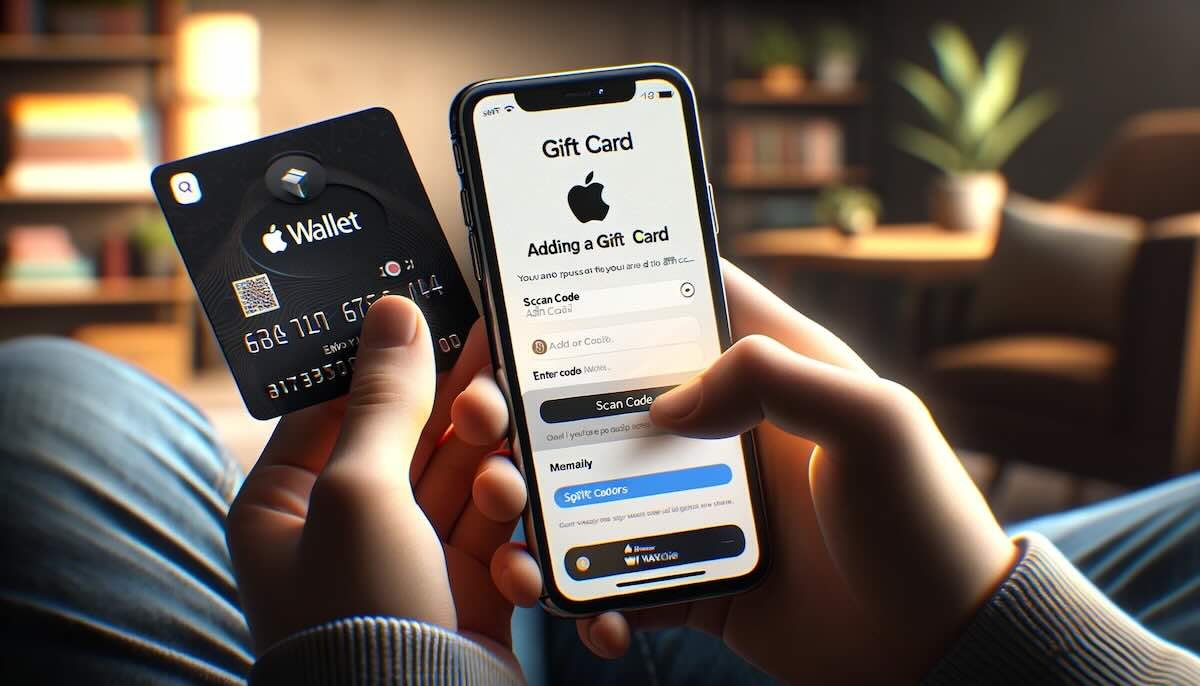
Got a gift card and not sure what to do with it? Apple Wallet is your answer for keeping those cards handy. This guide will show you how simple it is to add any gift card right into your iPhone’s wallet, so you’re always ready to shop.
Dive in for an easier way to spend!
Key Takeaways
- You can add supported gift cards to Apple Wallet by using store apps or email links, then follow prompts to add them.
- Keep your gift cards secure with Apple Wallet features like Face ID and passcode protection, plus get instant purchase notifications.
- No extra fees are charged for adding or using gift cards in the Apple Wallet app.
- Easily manage your gift cards in the Wallet app, find balances, and use them at stores by holding your iPhone near a reader.
- Update the Apple Wallet app regularly for new features and security, organize gift cards with “Favorites,” and delete old ones.
Understanding Apple Wallet Support
The Apple Wallet makes it easy to store, manage, and use your gift cards all in one place. With just a few taps on your phone, you can add your gift cards to the Wallet for convenient access anytime.
Adding Gift Cards to Apple Wallet
You can easily add gift cards to your Apple Wallet for quick use. First, check if your gift card is supported by Apple Wallet. Some stores have their own apps that let you add the card there before it shows up in your wallet.
Open the app of the store from where the gift card is and find the option to add it to Apple Wallet.
Next, tap on ‘Add to Apple Wallet’ and follow any additional steps provided by the app or store. If you received a digital apple gift card via email, look for an ‘Add to Apple Wallet’ button within that email.
Once tapped, it’ll give instructions on how to redeem Apple Gift Cards directly into your wallet app so you can start shopping right away! Always check your apple gift card balance after adding it, just to ensure everything went smoothly.
Also read: Can I Use Apple Pay at Shell Gas Stations and Stores?
Benefits of Adding Gift Cards to Apple Wallet
By adding gift cards to your Apple Wallet, you can enjoy benefits such as enhanced security, versatility in usage, easy access to your gift card information, and zero fees for managing and using your gift cards.
Read more to find out how you can easily add a gift card to your Apple Wallet!
Security
Gift cards in Apple Wallet are safe and secure. Your card’s information gets protected by the same technology that keeps Apple Pay safe. If you lose your phone, you can use Find My iPhone to lock it or wipe it clean.
This way, nobody else can use your gift cards. Always make sure to keep your device passcode strong and never share it.
Using Apple Wallet means no more physical cards that can get stolen or lost. Each transaction requires your Face ID, Touch ID, or passcode for an extra layer of security. You’ll also get instant notifications on purchases so you can always check your apple gift card balance right away if something looks wrong.
With these features, carrying a gift card in Apple Wallet is like having a secure vault right in your pocket.
Versatility
Apple Wallet turns your phone into a digital wallet. It holds different types of gift cards alongside credit and debit cards. You can store cards for stores, restaurants, or any place that offers them.
This way, you have many payment options in one spot.
Use your iPhone to redeem an apple gift card when shopping or dining out. Check the balance right from your phone before making a purchase. Apple Wallet keeps all your gift cards ready to use whenever you need them.
Easy Access
Adding gift cards to your Apple Wallet allows for easy access when you need them. Once added, your gift card is readily available on your iPhone or other Apple devices, eliminating the hassle of carrying physical cards or searching through emails.
Simply open the Wallet app and swipe to find your gift card ready for use, making it convenient for quick and seamless transactions.
With just a few taps on your device, you can access and redeem your gift cards directly from Apple Wallet while shopping in-store or online. This accessibility streamlines the process of using and managing your gift cards, providing a user-friendly way to enjoy their benefits.
Zero fees
Adding gift cards to Apple Wallet comes with the benefit of zero fees, meaning no extra charges for adding or using them through the app. This feature saves you money and allows you to fully utilize the value of your gift cards without any deductions.
When redeeming or checking your Apple gift card balance, rest assured that there are no additional fees involved in the process. This makes it a cost-effective and convenient way to manage and utilize your gift card balances within Apple Wallet.
Also read: Does Old Navy Accept Apple Pay? – Everything You Need to Know
Step-by-Step Guide to Add a Gift Card to Your Apple Wallet
To add a gift card to your Apple Wallet, follow these simple steps:
- Open the Wallet app on your iPhone and tap the “+” sign.
- Select “Add Other Pass” if the gift card doesn’t have an option to scan.
- Enter the gift card details manually or use the camera to scan the card’s barcode.
- Confirm the details and tap “Add” to add the gift card to your Apple Wallet.
Managing And Using Gift Cards in Your Wallet
Once added, gift cards in your Apple Wallet can be easily managed and used. Simply tap on the card to view its details, balance, and recent transactions. When making a purchase, just hold your iPhone near the card reader and authorize the payment with Face ID or Touch ID.
If you have multiple gift cards, swipe left or right to select the one you want to use. Additionally, some merchants allow you to use the Apple Watch for contactless payments using your stored gift cards.
Keep track of your balances by checking them regularly through the Wallet app.
To redeem an apple gift card (Apple Store Gift Card) on your iPhone or iPad: Simple go to Settings > [your name] > iTunes & App Store > Apple ID: [your email address] then click “Redeem Gift Card” and input the code from physical apple gift card is doable.
Also read: How to Add Money to a Netspend Card: Your Guide to Re-loading
Tips For Using Apple Wallet for Gift Cards
- Keep your Apple Wallet app updated to access the latest features and security updates.
- Add a passcode or use Face ID/Touch ID for an added layer of security when accessing gift cards in your wallet.
- Organize your gift cards by using the “Favorites” feature for easy access to frequently used cards.
- Enable notifications to receive alerts about expiring or near – expiry gift cards, ensuring you don’t miss out on using them.
- Consider adding a backup payment method in your Apple Wallet for seamless transactions if the gift card balance is insufficient.
- Remove any expired or unused gift cards from your wallet to declutter and stay organized.
FAQs About Adding Gift Cards to Your Wallet
You can add gift cards from participating stores, restaurants, and more to Apple Wallet. Compatible gift cards will have the Apple Wallet logo or indicate they can be added.
Open the Wallet app, tap the gift card, then tap the three dots in the upper right to view card details including the balance.
No, you cannot transfer balances between different gift cards in Apple Wallet. Each gift card functions separately.
Unfortunately the gift cards stored in your Apple Wallet cannot be recovered if you lose your iPhone. Make sure you use any balances before switching devices.
No, adding a gift card to Apple Wallet does not change the card’s expiration date or terms and conditions set by the merchant. Be sure to check expiry and details before adding a card.
Yes, you can remove a gift card anytime by opening it and tapping the Remove button. The remaining balance will no longer be accessible from Apple Wallet.
Conclusion
In conclusion, adding a gift card to Apple Wallet is simple and convenient. Enjoy the benefits of secure storage, easy access, and no extra fees. Follow the step-by-step guide for a seamless experience.
Let Apple Wallet take your gift card management to the next level!